

To find your registration appointment date and time, log in to MyPalomar student center.
Your registration appointment date and time will be displayed on the Dashboard Message of the Day.
Click on the “Welcome” hyperlink. Appointments will be displayed by the end of the day.
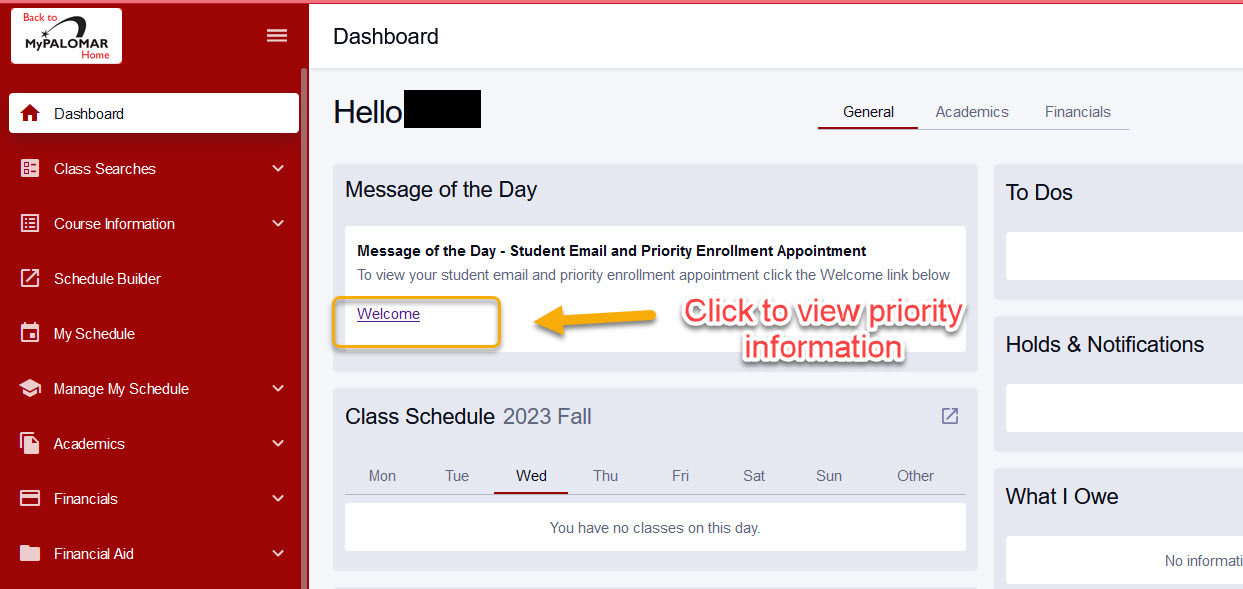
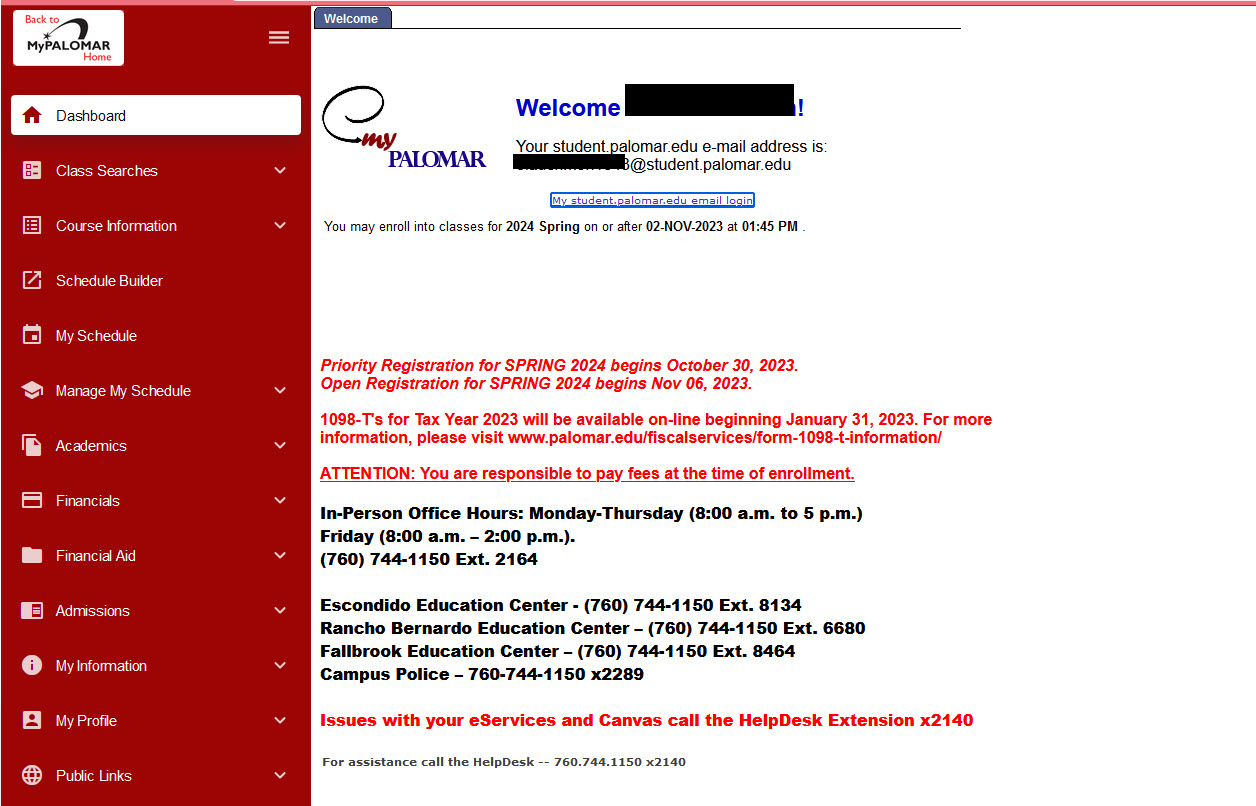
*To find out which priority group you belong to, please click on “Priority Procedure“
*Priority registration date for each semester is located on our registration timetable calendar.
You’ve been admitted to Palomar College – now what? Our checklist breaks down the enrollment process, step-by-step.
Active Students
Are you continuing to take classes from the previous semester (took classes in the previous two semester), then you do not need to update your application at this time.
Continuing Students
Have you applied to or attended Palomar College within the last two semesters? If the answer is no, then you will simply sign into your CCCApply Application and update your application. You will want to double-check that your name and address is correct, and you may need to update your program of study/majo
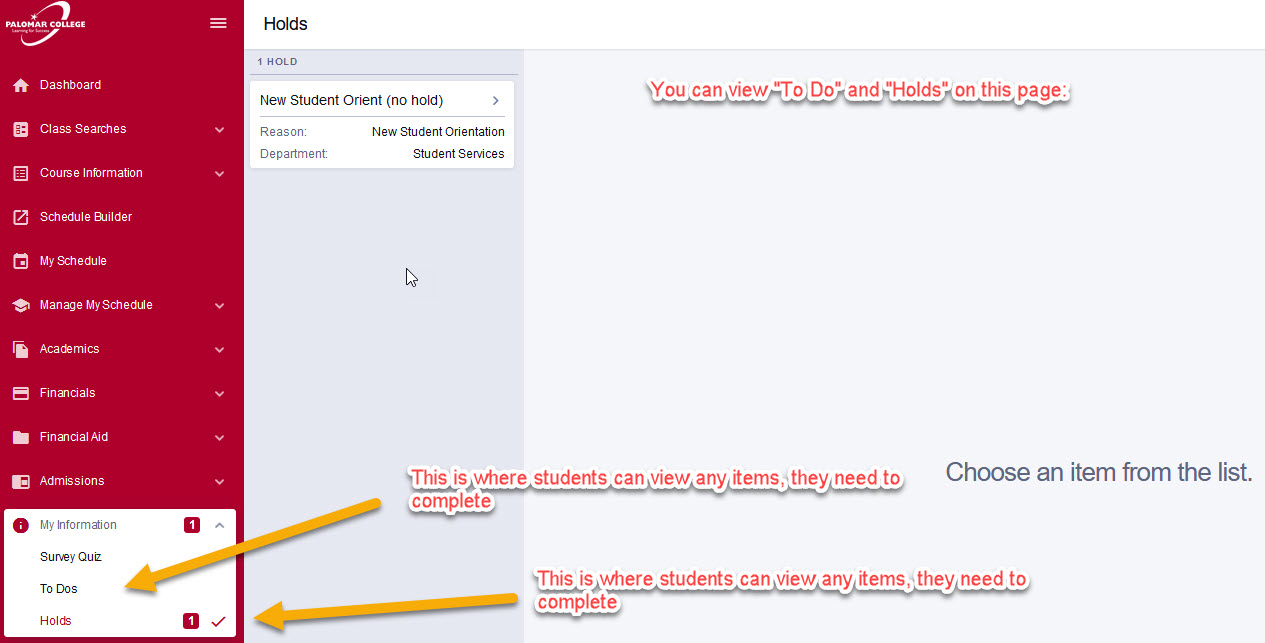
There are various holds that can affect a student’s ability to register for classes. Please be sure to address and clear these holds prior to your assigned registration date and time. Keep in mind that these matters may take time to resolve, so please address them sooner rather than later.
Tip: Holds can be placed throughout the registration period, so we recommend that you check for them regularly.
As you plan for registration, it is recommended that you check for your course requirements and draft your schedule prior to meeting with your counselor. Please reach out to the specific department to gain clarification on a course requirement.
Please review the following resources to help you get started.
There are many conditions under which a student may need to obtain permission to enroll in a course including:
- If the student does not meet the course requirements or pre-requisites
- If the course is full
- If the instructor wants to individually approve every student wishing to take a course
Requesting permission does not automatically guarantee the student will have a spot in the class. There are a number of occasions when faculty may not grant permission. Faculty may:
- Approve the permission as long as there are open seats in the course
- Approve the permission until a specified expiration date
- Keep in mind, there is a hard-cap limit to each course that prevents all further enrollments
- Deny permission
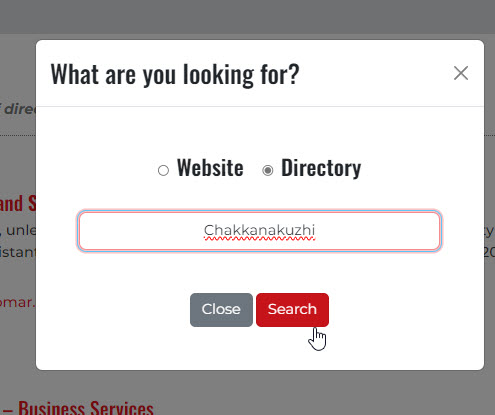
To search for an instructors contact information or department, please search through our directory.
*Tip: You can search using first name, last name, full name or department.

All students took a placement survey when they first applied to Palomar to determine which English or Math class best prepares them to be successful at Palomar College.
To find your English and Math placement, log in to your MyPalomar student portal. Your placement will be displayed under Academics tab on your left-hand side panel. Click on Test Scores and you will view your “Assessment/Placement Eligibility” on the right-hand side.
With admissions comes a score of important dates and deadlines that need to stay on your radar. To access our student friendly printable calendar, please take the steps below:
- Click on the A-Z on our main website (top right corner)
- Under “A” find “Admissions”
- Click on the “Site Menu”
- Click on “Calendars” and select “Important Dates for Students”
- You can print the calendar as a PDF, click on “Access the Printable Calendars
- You will see two different calendars. The student friendly calendar is the “Academic Calendar”
Browse the online Schedule Information for the upcoming semester. To view our calendar when our online class schedules are available please go to our Calendar.
- If you are considering a “Spring” intersession course(s), select Intersession from the drop down menu. If you are considering a summer session course (s), select Summer session from the drop down menu.
- Use Find Classes and Enroll – this tool lets you search by term, semester, subject, and both transfer and degree requirements.
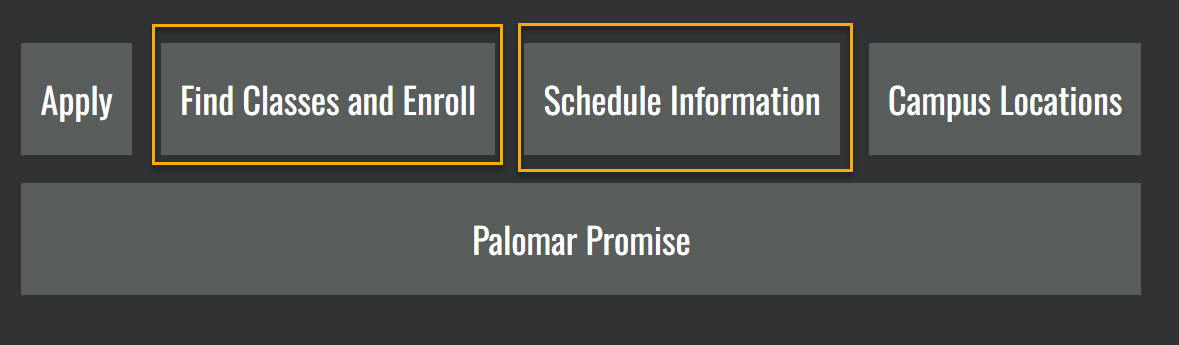
Please find the attached PDF with detailed step-by-step instructions and screenshots for searching and adding courses, blocking availability, and creating a schedule using the schedule builder feature.
Meet with a counselor to develop or update your education plan to include your current semester classes. A counselor will help you select classes for the current semester.
Appointments are limited – book early!
Helpful Tips to Prepare for Your Zoom Counseling Appointment:
- Zoom download is required for online appointments. Camera not required.
- You will receive an email from noreply@palomar.edu for Zoom appointment information. Watch this how-to video on how to look check your email for your zoom online counseling appointment.
- Review How to Prepare for Your Online Counseling Appointment.
- After meeting with a counselor, watch this how-to-video to learn how to access your education plan via your MyPalomar student center.
On (or after) your priority registration date and time, log in to MyPalomar to enroll in your classes!
Helpful Tip: Registering early gives you the opportunity to choose your classes while plenty of sections are still available.
Important Reminder for Current Promise students:
- To be confirmed for spring or fall semester, you must be enrolled in at least 12 units, or units approved by the DRC, for Spring or Fall each year.
- The Promise Office will begin reviewing eligibility and confirming students on a specific date each semester, so please keep an eye out for an email communication through your student email.
- They will have regular weekly reviews to determine each semester eligibility
-
As a reminder, waitlisted classes do not count towards the full time status for Promise eligibility.
Disability Related Accommodations:
Students seeking a waiver of the 12 unit minimum enrollment requirement for each specific school year (i.e. 2022/2023) due to disability-related accommodations are invited to contact the Disability Resource Center (DRC) at drc@palomar.edu or 760-744-1150, ext. 2375 and leave a message. Only students registered with the DRC may qualify to apply. For more information on how to register with the Palomar College DRC, please visit Palomar DRC.
If a course is full, but a waitlist is available (not all courses have a waitlist feature), students can add themselves to the waitlist. Be sure to click “submit” to complete the transaction.
Please visit our Waitlist page:
How to Video version: Waitlist
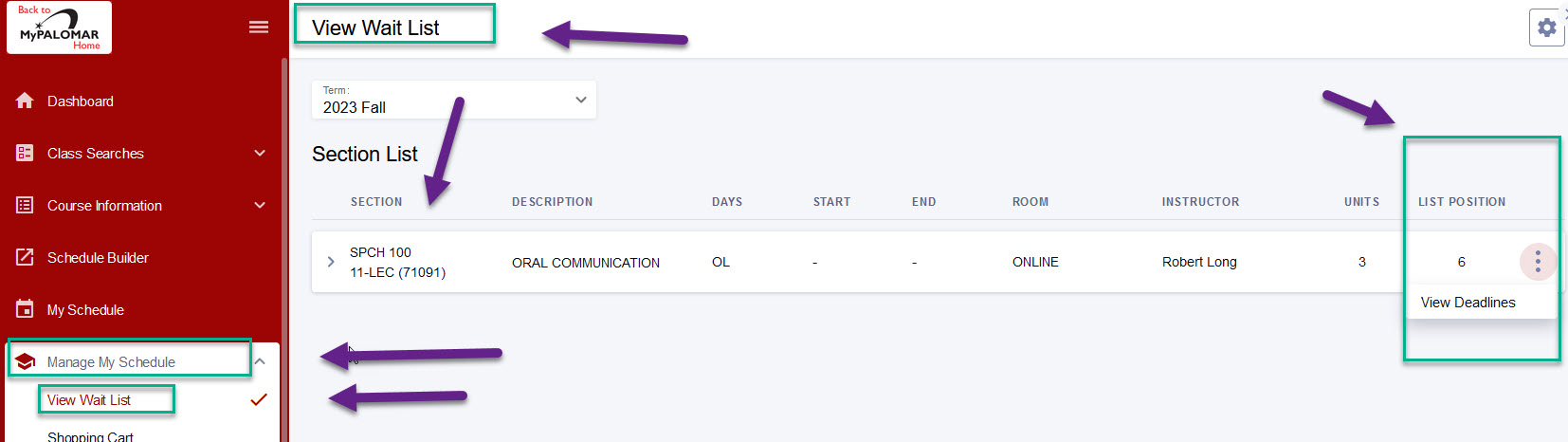
A few tips about waitlisted courses:
Students will not be auto-enrolled from the wait list if any one of the following conditions exists:
- Corequisites or prerequisites for the wait listed class are not met.
- Hold on student record (past due fees, address hold, SSN verification, disciplinary hold, etc).
- Official enrollment into the same course but different section.
- Time conflict with another course.
If any of the conditions listed above exists, the auto-enroll system will enroll the next wait listed student. It is the student’s responsibility to verify all holds are cleared. You will not be notified if your position is skipped during the auto-enroll process.
There is no guarantee that waitlisted students will be able to register for a closed course.
What prevents students from adding themselves to a wait list?
- Enrollment appointment date/time has not yet been reached
- Prerequisites/corequisites for the class are not met
- Department consent required to enroll in the class
- Student has a hold on their account
- The last day to wait list has passed
- Wait list is at its capacity
- Already enrolled or waitlisted in another section of the same course, causing a time conflict to occur
- Term unit limit is exceeded with enrolled and/or waitlisted courses: fall and spring, 19.0; summer, 12.0.
Checking your position on a wait listed course
Again, please regularly check your Palomar email for waitlist notifications as a seat can become available at any time. The last day students can add themselves to a wait list is the Tuesday before the start of the class. Students will no longer be auto enrolled beginning the Wednesday before the first day of classes.
*Tip: Check your schedule to see if you were added to the course. If you did not find an email, sometimes emails are sent to spam, junk or are blocked.
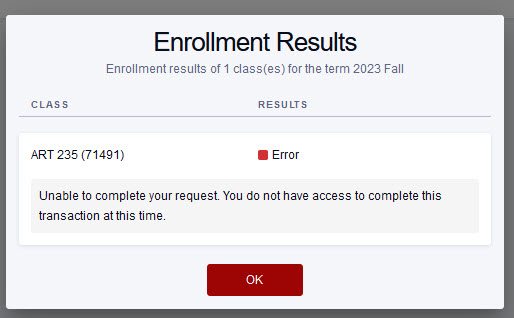
If you receive an error message, a red X, it will indicate what is preventing your registration. If you need assistance, you can always contact our admissions department at admissions@palomar.edu or give us a call at 760-744-1150 ex 2164.
Please access your MyPalomar student center to pay for your tuition and fees. Students are responsible for paying all mandatory fees. All fees are due at registration.
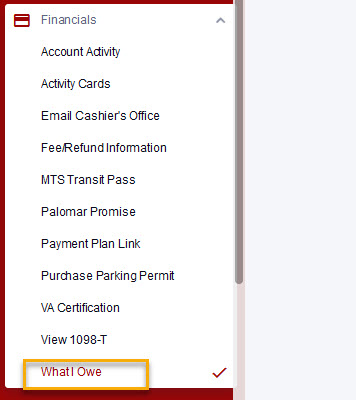
Please note that partial payments cannot be made via the online payment system.
Payment Plan
Students can sign up for a payment plan. The payment plan can be accessed in your My Palomar student center. For more information about how to make a payment visit the Cashiers Office.
Purchase additional items as necessary:
Buy a Parking Pass
A parking pass cab be purchased through your MyPalomar student center
Buy a Bus/Trolley Pass
Please visit our Cashiers Office
Buy a Student ID Card
A student ID card can be purchased through your MyPalomar student center. Once you have made a payment, you can visit SU 19 to obtain your card.
Forgot my password for MyPalomar
Contact the Admissions Office at 760-744-1150, ext. 2164 or visit the Enrollment Services Virtual Help Desk if you have questions or encounter issues with registration.
- You may also visit the Admissions website for General Information regarding enrollment.
Forgot my password for my Student Email
The password to your student email is the same password you use for your MyPalomar.
If you are having issues logging into your email, please reset your MyPalomar password.
If you reset your password already, can get into your MyPalomar but not email, please reach out to our Help Desk (760)744-1150 x2140
Forgot my password for Canvas
Use MyPalomar to log into your Canvas.
In accordance with federal regulations, Palomar College may not permit students residing outside of California to enroll in online classes without approval of the state where the student resides. Students residing in a non-approved state/territory are not permitted to enroll in online classes and will be charged accordingly. Check here for an up to date list of restricted states and territories.
Important Deadlines
There are important deadlines which can be different for each class depending on when the class meets, and the session start and end date. Important Deadlines include:
Census Date – Drop with no notation ( grade)
Last date to drop with a W – Last day to withdraw
Last Refund Date – Last day to receive a refund
Last Date to add to Wait list
Last day to add without permission – Last day to add without instructor/department permission
Last day to add with permission – Last day to add with instructor/department permission
Last day to change to Audit or P/NP- Last day to change letter grade to Pass/No Pass grade or Audit the course
Make sure to review the deadlines for each of your classes.