

Connecting to Palomar-Guest Wi-Fi:


Guests at Palomar College can use our ‘Palomar-Guest‘ wireless network to connect to our open (unsecured) wireless network.
Connecting to this network is usually as easy as pointing your phone’s camera at the QR code, and then clicking the ‘Connect to Network’ button.
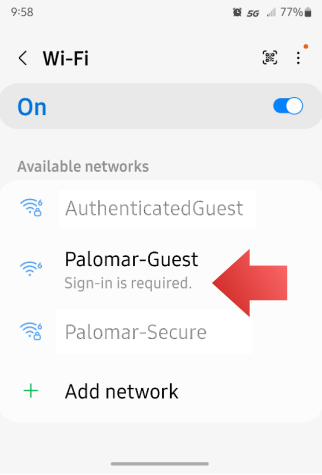
Once you select the network, look for a ‘Sign-in‘ message. Generally, you should be able to click on the word ‘Sign-in‘ and it should take you to Palomar’s captive portal page.
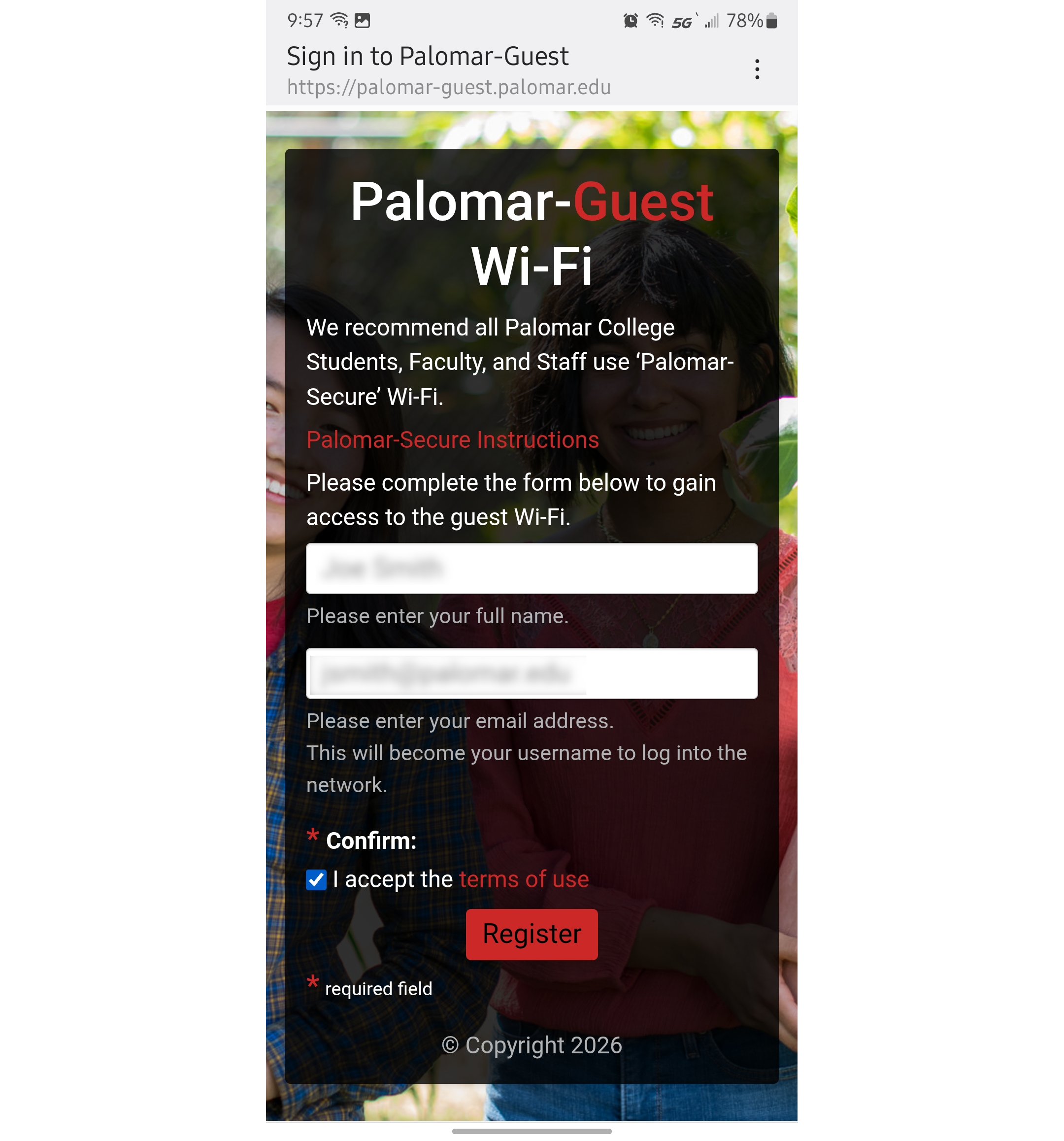
After you click the ‘Register‘ button a second page will appear with some additional information pertaining to your guest account.
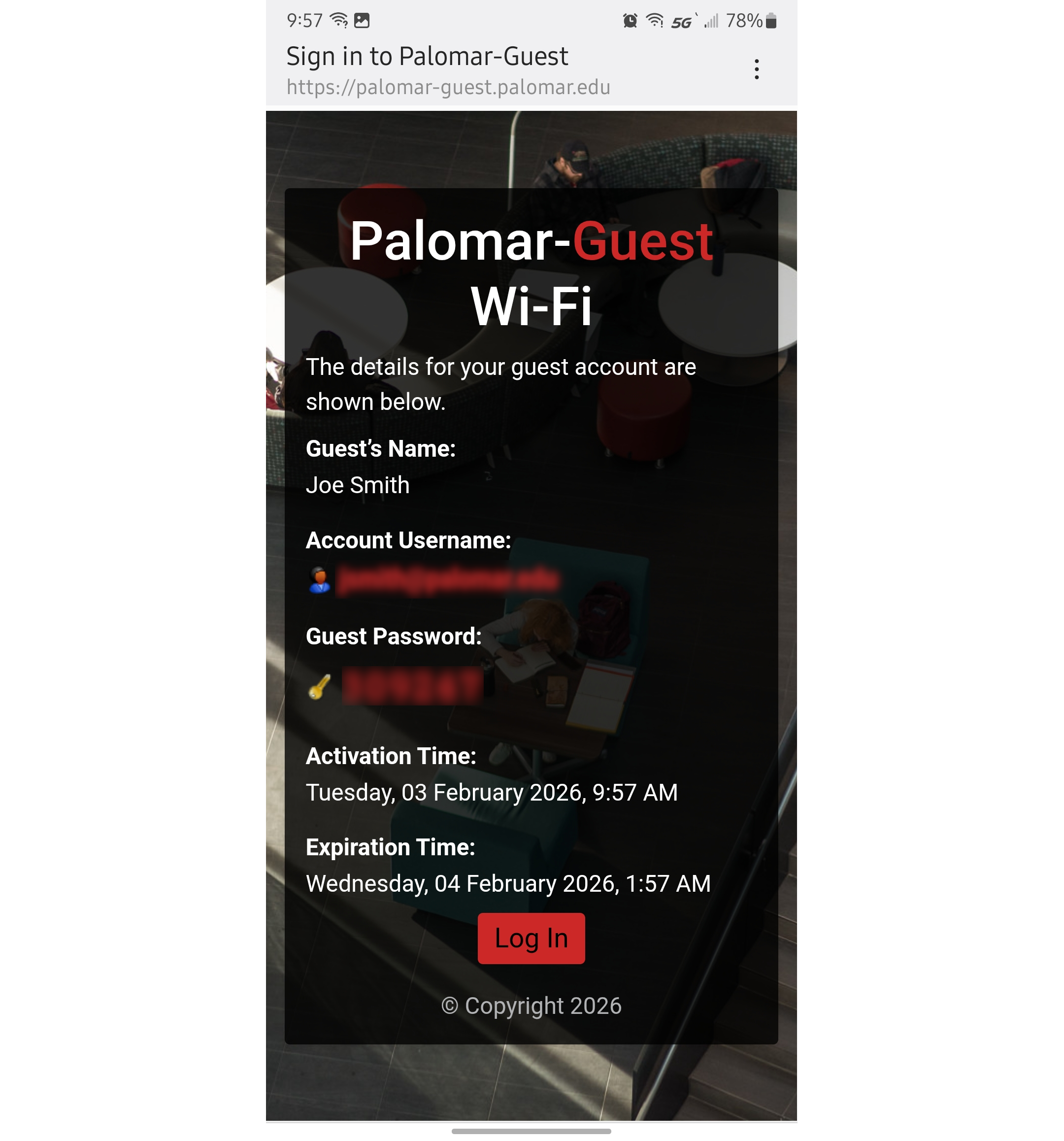
From here, you can just click the ‘Log In‘ button and you should have access to the internet.