
It is recommended that all staff and students connect to the “Palomar-Secure” wireless network with their @palomar.edu or @student.palomar.edu account for better security.

Instructions for Android Devices
- Open your devices settings app
- Tap Network & Internet and then Internet
- Tap ‘Palomar-Secure’
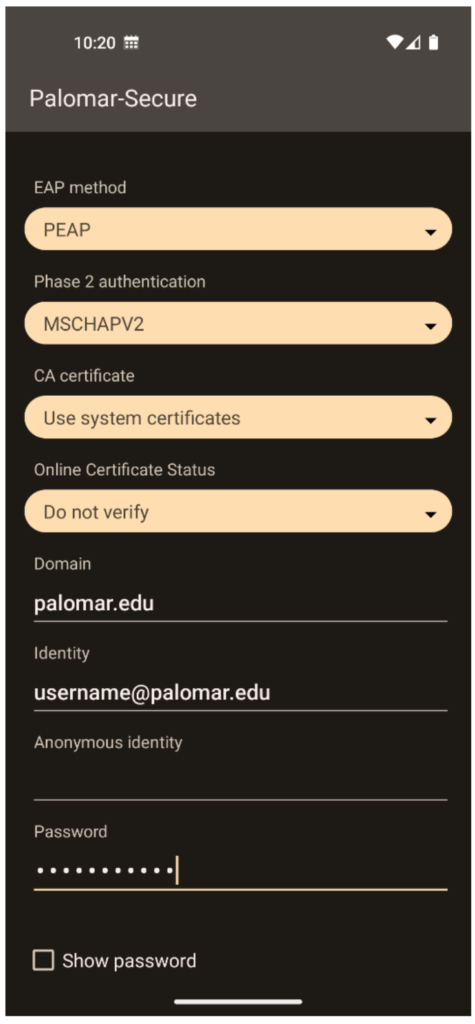
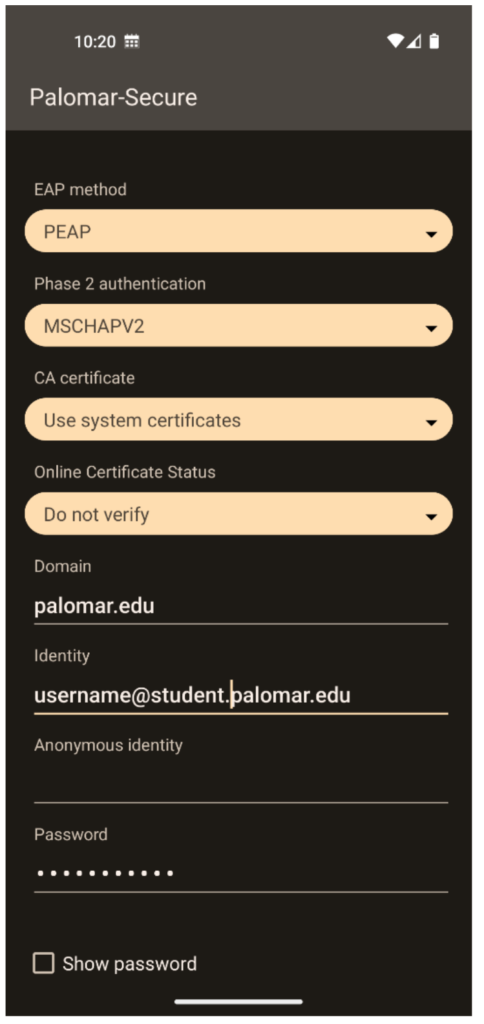
- Enter the following settings, then tap Connect:
- EAP Method: PEAP
- Phase 2 Authentication: MSCHAPV2
- CA Certificate: Use system certificates
- Online Certificate Status: Do not validate
- Domain: palomar.edu
- Identity: Full email address (username@palomar.edu or username@student.palomar.edu)
- Password: Your Palomar account password
Staff Example:
Student Example:

Instructions for Apple iOS Devices
- From your Home screen, go to Settings and select Wi-Fi
- Select the Palomar-Secure network
- Enter your full email address: (username@palomar.edu or username@student.palomar.edu)
- Enter your Palomar account password
- Click Connect
- Trust the certificate – mywifi.palomar.edu
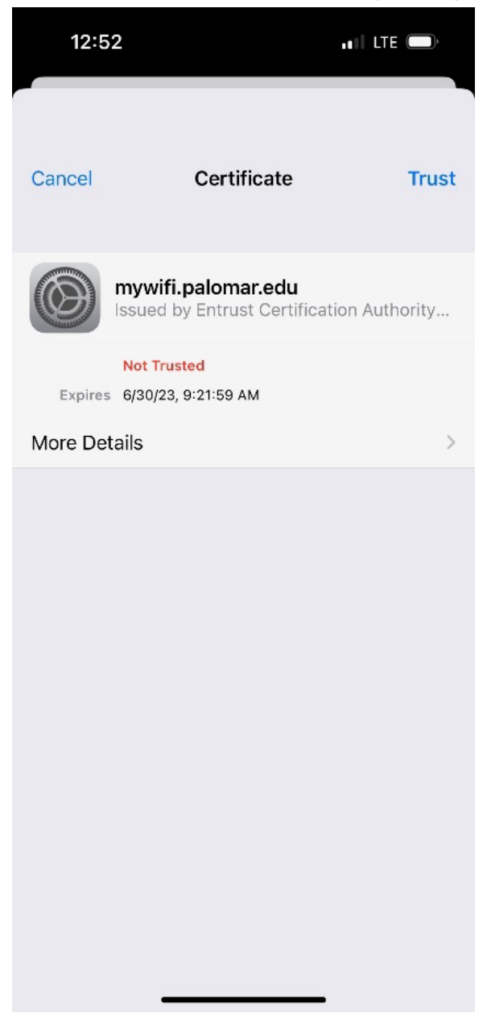
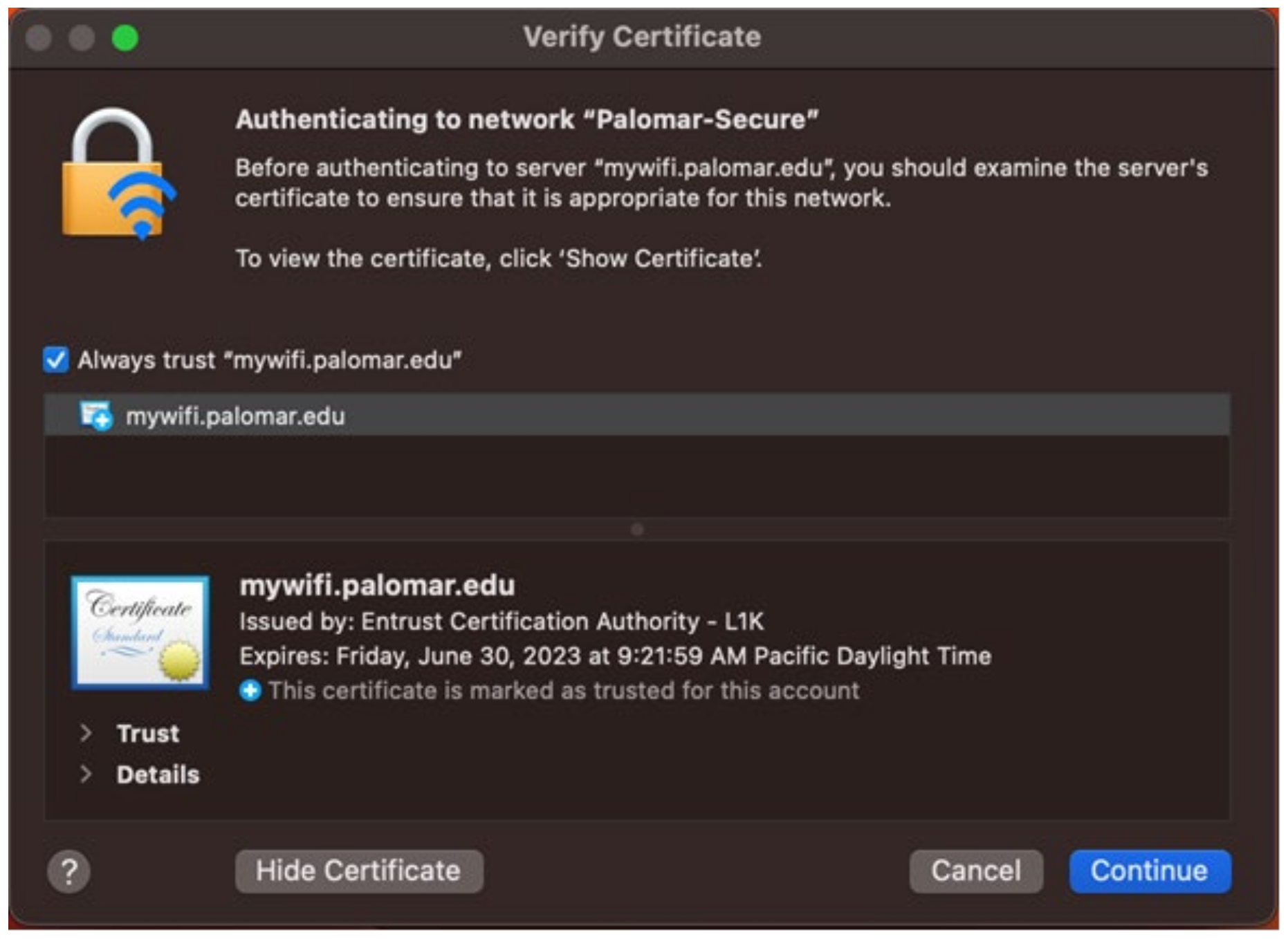
Instructions for Apple MacBooks
- From the Wi-Fi menu
 in the menu bar, choose Palomar-Secure
 - Enter your full email address: (username@palomar.edu or username@student.palomar.edu)
- Enter your Palomar account password and click Connect
- Trust the certificate – mywifi.palomar.edu
- Click Continue
Note – If the first attempted connection fails or seems to timeout, then simply reconnect again.

Instructions for Windows 10/11:
- Click on the Wireless Network Connection icon on the bottom right of the screen
- Select Palomar-Secure
- Click Connect
- If prompted by a “Continue Connecting?” message, click Connect
- Enter your full Palomar email address: (username@palomar.edu or username@student.palomar.edu)
- Enter your Palomar account password
- Click OK
- If prompted by a “Continue Connecting?” message, click Connect

Instructions for Google Chromebooks:
- Click on the Wireless Network Connection icon on the bottom right of your screen:
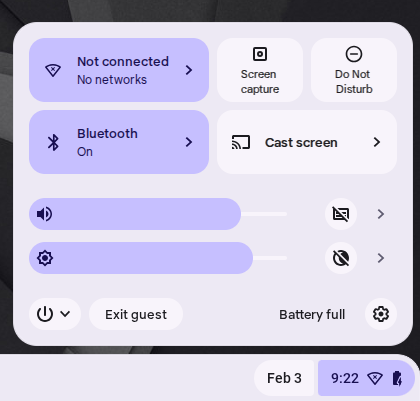
- Select the carrot icon > to see the available networks
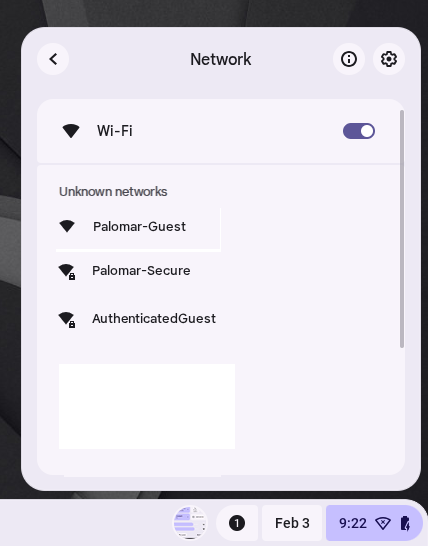
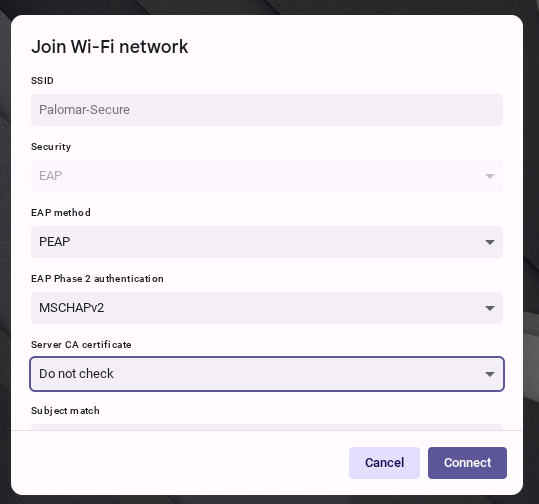
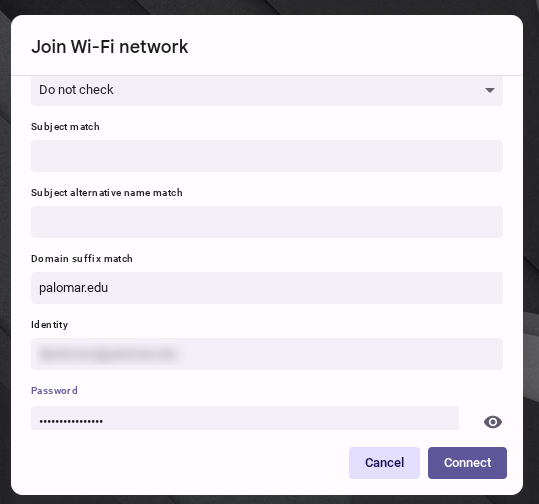
- Enter the following settings, then tap Connect:
- EAP Method: PEAP
- Phase 2 Authentication: MSCHAPV2
- CA Certificate: Use system certificates
- Online Certificate Status: Do not validate
- Domain: palomar.edu
- Identity: Full email address (username@palomar.edu or username@student.palomar.edu)
- Password: Your Palomar account password